
An Introduction to our Dashboard
Explore the Tickety dashboard and learn about its key features, sections, and how to navigate through different configuration options.
Sidebar Menu
The left sidebar groups every page into seven sections:
- Tickety - The pages at the top of the sidebar: Home, Analytics, Premium & AI, Settings and Personalizer.
- Tickets - Configuration, Ticket Panels and Ticket Management.
- Applications - Configuration, Application Panels and Submissions.
- Verification - Configuration for the verification system.
- Welcomer - Configuration for welcome cards, messages, milestones and leave messages.
- Giveaways - Configuration and Giveaway Management.
- Server - Integrations, Command Permissions, Automations, FAQs and Blacklists.
Hovering a sidebar entry shows a short description of the page it opens.
If a section is missing for you, you were given access to part of the dashboard rather than all of it. See What permissions are needed to access the dashboard?.
Section Tabs
Home
The landing page for the server. Quick Actions takes you straight to the pages you open most, and Modules lists every feature with a short line on what it does.
Analytics
Ticket and application figures for your server: how much comes in, how fast your staff answer, and how each panel is doing. Full guide: Analytics.
Premium & AI
Your plan for this server. Compare the plans, add or remove add-ons, buy AI credits, and move a subscription to another server.
- What is Tickety Premium? - what a subscription unlocks.
- AI Credits - what credits are and where the balance is shown.
- Managing your subscription - renewals, add-ons, transfers and cancelling.
Settings
Server wide settings: Admin Role, Language, Customization, Logging, Access Control and Advanced Settings. Full guide: General server settings.
Personalizer 👑
Run Tickety under your own bot name, avatar and status. The entry carries a Custom Bot badge because it needs the Custom Bot add-on on top of premium. Full guide: Setting up your Custom Bot.
Configuration
Everything the ticket system does outside of a single panel, split into nine pages:
- General Settings - Ticket limits, creation cooldown, select menu placeholder and overflow warnings.
- AI Ticket Features 👑 - Suggest an FAQ answer before a ticket opens, set ticket priority, point members at a better panel, and help staff wrap a ticket up.
- Close Settings - What happens when a ticket closes: DM notifications, transcripts, close reasons and ticket ratings.
- New Ticket Command - The panels members can open with
/new, and the look of its message. - Ticket Request Command - The
/request ticketcommand your staff use to invite a member to open a ticket. - Autoclose Settings - Close idle tickets, or tickets whose creator left the server.
- Inactivity Notifications - Alert your staff when a ticket has been waiting too long for a reply.
- Request Close Command - The look of the close request members and staff send each other.
- Status Board - A live message showing open tickets, daily totals and per panel figures.
Ticket Panels
Your panels, and the editor that builds them. Each panel is edited across nine tabs: General, Embed, Messages, Forms, Roles, Availability, Logging, AI and Advanced. Full guide: Ticket Panel Configuration.
Ticket Management
Open and closed tickets in one list. Reading a ticket's history and closing a ticket without going back to Discord are free. Replying to the member from the dashboard 👑 needs premium. Full guide: Ticket Management.
Configuration
Four pages covering the application system as a whole:
- General Settings - The command cooldown, what happens when an applicant leaves, and your default accept and deny reasons.
- Application Command - The panels members can open with
/apply, and the look of its message. - Application Request Command - The
/request applicationcommand your staff use to invite someone to apply. - Inactivity Notifications - Alert your staff when a submission has been waiting too long for review.
Application Panels
Your application panels, edited across seven tabs: General, Embed, Messages, Questions, AI, Roles and Logging.
- Application Panel Configuration - build your first panel.
- Application Questions - the question types and their limits.
- Applying in the Browser - let members answer on the website instead of in Discord.
Submissions
Every application your members sent, with the answers, the reviewer notes and the accept and deny buttons. Full guide: Reviewing Submissions.
Configuration
One page for the whole verification system, split into eight sections:
- General Settings - Turn verification on, pick the method, and set the account requirements members must meet.
- Punishment Settings - What happens to a member who fails to verify in time or runs out of attempts, including the appeal route.
- Role Management - The roles handled on join and on verification.
- Verification Message - The panel members see when they need to verify.
- FAQ Configuration - Put an FAQ button on the verification panel.
- Success Message - What a member sees once they pass.
- Commands Cooldown - The delay between verification commands, in seconds.
- Logging - The channel that records verification events.
The three methods are Web Verification, Discord Captcha 👑 and Click to Pass 👑. Web Verification has a Settings button that opens Web Security, where you decide how strictly a browser session is judged.
Full guides:
- Verification - the core setup.
- Verification Methods - what the member is asked to do in each one.
- Punishments and Appeals - kicks, bans, role actions and quarantine.
- Web Security - the strictness policy for web verification.
Configuration
One page for everything a member sees when they join or leave, split into six sections:
- General Settings - Turn the welcomer on, control how it behaves, and pick the roles new members are given.
- Welcome Card - The image posted with the welcome message.
- Welcome Messages - The message in your channel and the DM that goes with it.
- Member Milestones - A celebration message when your server hits a member count.
- FAQ Configuration - Put an FAQ button on the welcome message.
- Leave Message - What is posted when someone leaves.
Full guides:
- Welcomer - what the module does and how to switch it on.
- Welcome Card - the image, its text and its colours.
- Welcome, DM and Leave Messages - the three messages and their placeholders.
- Member Milestones - milestone counts and their message.
Configuration
The defaults every new giveaway starts from:
- Luck Modifiers - Extra entries and multipliers that change a member's chances.
- Entry Requirements - The roles copied into every new giveaway, and the captcha members solve before joining.
- Prize Claiming - Let winners claim their prize by opening a ticket, and how long they have.
- Winner Notifications - The DM a winner receives.
- Giveaway Embed - The look of the giveaway message.
- Participate Button - The emoji, label and colour of the join button.
- Giveaway Page - How the public giveaway page is linked on the message.
- FAQ Configuration - Put an FAQ button on the giveaway message.
- Commands Cooldown - The delay between giveaway commands, in seconds.
- Logging - The channel that records giveaway events.
Giveaway Management
Your active and ended giveaways, with the entries, the winners and the controls to edit, end or reroll.
Full guides:
- Giveaways - what the module does.
- Creating a Giveaway - the builder, start to finish.
- Entry Requirements and Luck - who may join and who gets an advantage.
- Winners and Prize Claiming - drawing, claiming and rerolling.
- Giveaway Appearance - the embed, the button and the page.
- Managing Giveaways - editing, ending and deleting.
Integrations
Connect a trusted service and use its data inside Tickety messages. Full guide: Integrations.
Command Permissions
Decide which roles and channels may use each slash command. Full guide: Command Permissions.
Automations
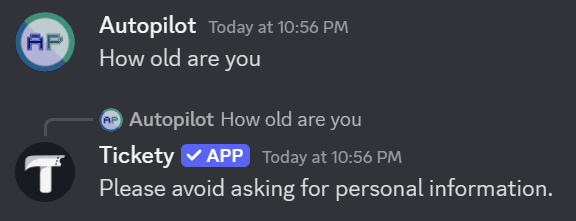
Teach Tickety to answer, ask, vote and hand out roles. The simplest automation replies to a phrase, and the same builder also makes commands, polls, suggestion boards and self role panels.
Example trigger words: How old are you
Automation reply: Please avoid asking for personal information.
Full guide: Automations.
FAQs
Build FAQ panels that answer common questions on their own, then put an FAQ button on your ticket panels, verification panel, welcome messages and giveaways.
Full guides:
- FAQ Panels - what a panel is and where it can appear.
- Questions and Answers - writing the entries.
- FAQ Buttons on Other Features - the FAQ Configuration sections you have seen in the other tabs.
Blacklists
Everyone you have blocked from Tickety, with the reason and the expiry. A blacklist can cover everything or only tickets, applications or giveaways. Full guide: Blacklists.
A 👑 marks something that needs a subscription on this server.
This feature requires a Premium Subscription.
Where to go next
- Getting Started: invite Tickety and set your first server settings.
- Ticket Panel Configuration: build the panel your members click.
- Available Commands: every slash command and what it does.
- General server settings: the Settings page, section by section.
- Free and Premium limits: what each plan allows.