
Ticket Management
Review every ticket in your server, follow open ones live, and read the transcripts of closed ones.
Ticket Management is where every ticket your server has ever had ends up. You can search and filter the list, watch an open ticket as it happens, answer it without leaving the dashboard, close it, and read the saved transcript of anything that already closed.
Access the Web Dashboard
Open your Tickety Dashboard. Log in using your Discord Account.
Navigate to Ticket Management
-
Once logged in, locate and click on the "Ticket Management" section in the sidebar under the TICKETS category.
-
You will see a list of every ticket created in your server.
What you see is limited to the panels you have access to. A server owner or admin sees everything. A staff member with access to two panels sees those two.
The overview tiles
Four tiles sit above the list and describe your queue without any filtering:
- Open Queue: tickets that are open right now.
- Created (7d): tickets created in the last seven days, with today's count underneath.
- Closed (7d): tickets closed in the last seven days, with today's count underneath.
- All-Time Created: every ticket ever created, with the all-time closed and claimed totals underneath. It reads
Unavailable for scoped panel accesswhen your access is limited to specific panels.
Finding a ticket
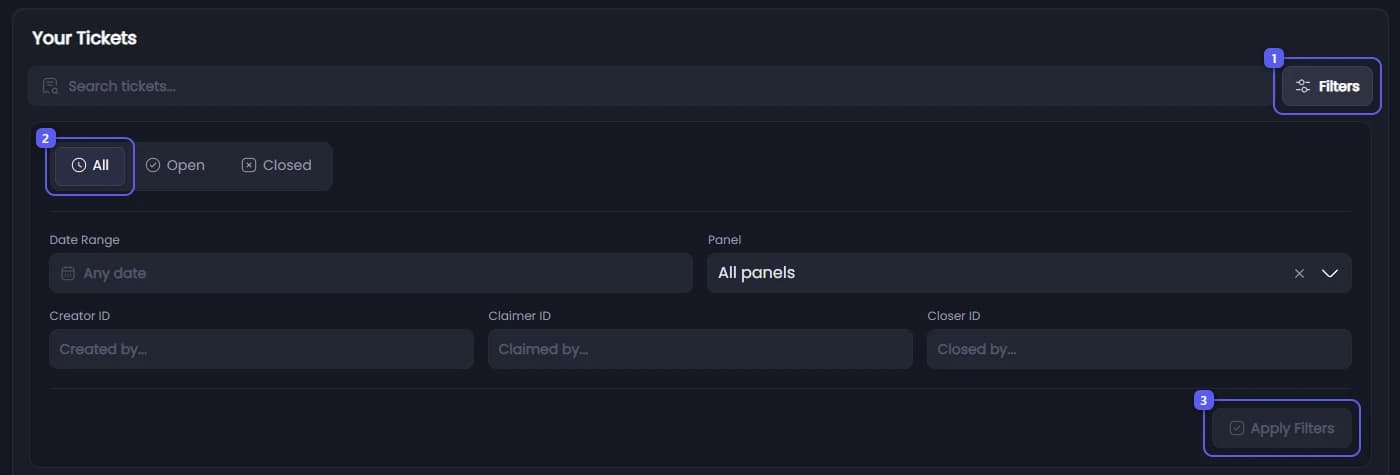
Type into the search box to narrow the list. Press Filters to open the filter panel, which carries a number badge when filters are active.
| Filter | What it does |
|---|---|
| All / Open / Closed | Limits the list to one status |
| Date Range | Only tickets opened between two dates |
| Panel | Only tickets from one ticket panel |
| Creator ID | Only tickets opened by one member |
| Claimer ID | Only tickets claimed by one staff member |
| Closer ID | Only tickets closed by one staff member |
The three ID fields take a Discord user ID. Nothing changes until you press Apply Filters, so you can set several at once. Clear filters puts everything back.
The list itself shows Creator, Panel, Status and Open Date for each ticket, and loads more as you scroll.
In the picture, 1 is Filters, 2 is the status buttons and 3 is Apply Filters.
Reading a ticket
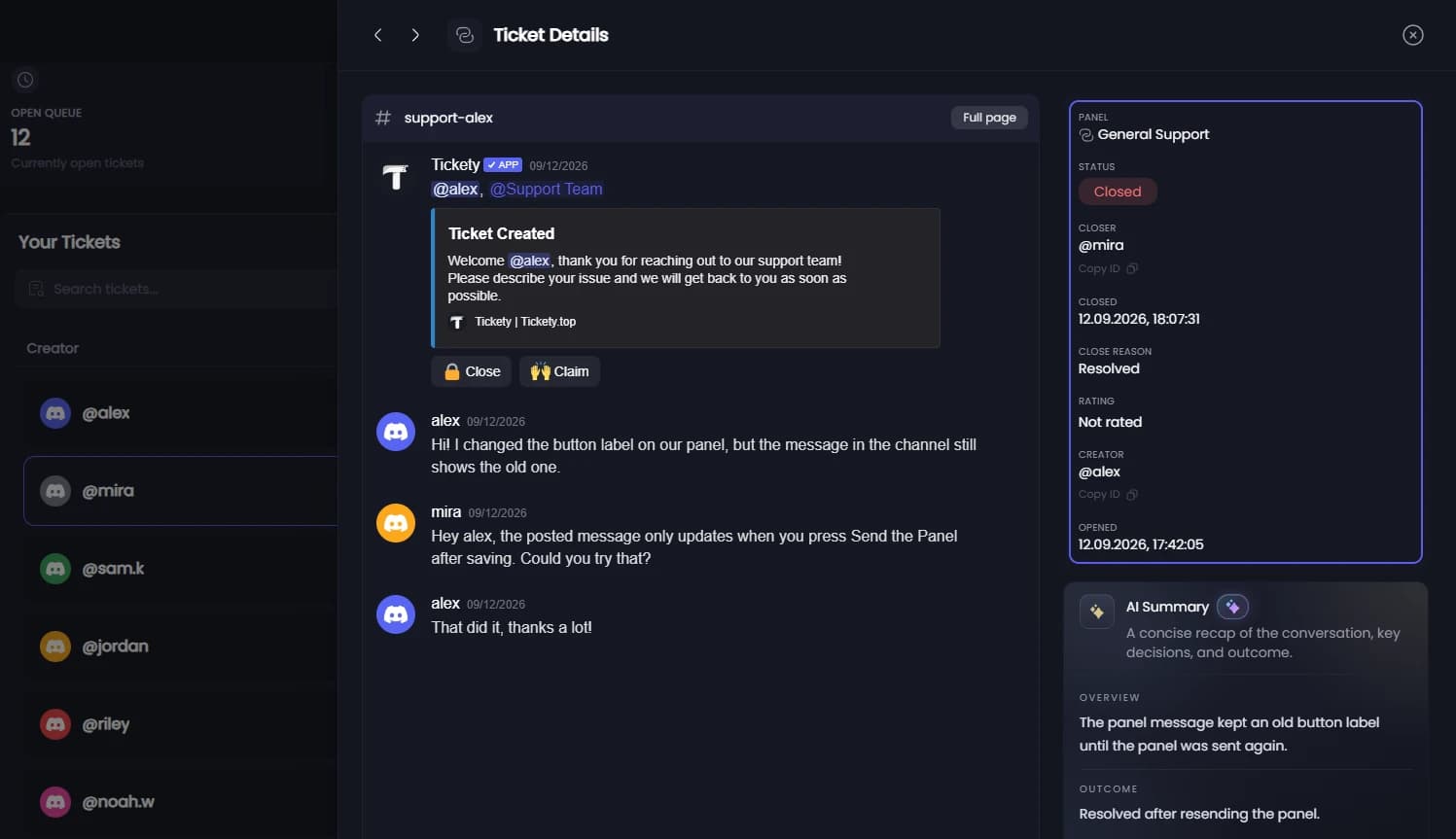
Select a ticket and it opens in a Ticket Details panel beside the conversation. What you see in the conversation depends on the ticket:
- An open ticket shows the live conversation. New messages appear as they are sent, and the header tells you whether the view is
Live connectedorReconnecting. When a message arrives while you are scrolled up, an Unread messages button appears so you can jump back down. - A closed ticket with a saved transcript shows that transcript inline, exactly as it was archived.
- A closed ticket without one shows
Transcript is not available for this ticket.That means the panel had Save Transcripts turned off when the ticket closed.
Press Full page to expand the conversation across the whole screen, and Close to come back. The arrows at the top left step to the previous and next ticket in your filtered list, which is the fastest way to work through a backlog.
The detail panel
| Field | What it shows |
|---|---|
| Panel | The ticket panel the ticket was opened from |
| Status | Open or Closed |
| Closer | The staff member who closed it |
| Closed | The date and time it closed |
| Close Reason | The reason that was given, or - when none was |
| Rating | The stars, the score out of five and the member's written feedback, or Not rated |
| Creator | The member who opened the ticket |
| Opened | The date and time it was created |
The close fields only appear once a ticket is closed. See Ticket Ratings for how the rating is collected and where else it shows up.
Claiming and requesting a close from the dashboard
The detail panel on an open ticket also carries the claim actions, so a ticket can be picked up without opening Discord. Which buttons appear is decided by the ticket itself, not by the page:
| Action | When it shows |
|---|---|
| Claim Ticket | The panel has claiming on and nobody holds the ticket |
| Release Ticket | You are the one holding it |
| Force Unclaim | Someone else holds it and you are allowed to take it from them |
| Request Close | No close has been requested on this ticket yet |
Force Unclaim is offered to the same people who get it on the ticket message in Discord: the Tickety admin role, any of the panel's support roles, or anyone with Manage Channels.
Request Close posts the request in the ticket with its usual buttons and honours the panel's request close timeout. The member still decides: the ticket does not close until they accept or the timeout runs out. Once a close has been requested the buttons are replaced by A close has been requested and is waiting on the member. See Request to Close.
Claiming and releasing edit the ticket's channel, and Discord allows only two channel edits every ten minutes per channel. Renames and moves made in Discord spend from that same budget, so a ticket that was just renamed may refuse a claim for a few minutes.
Closing a ticket from the dashboard
Open tickets carry a Close Ticket button under the detail panel, and each row in the list has one too. You are asked to confirm, and can leave a Close Reason (Optional) note. Pressing Close closes the ticket immediately.
This is the same close your staff run in Discord. The close message, the transcript and the rating request all behave exactly as they do there, so nothing is skipped by closing from the dashboard. See Close Ticket Settings.
Replying from the dashboard 👑
This feature requires a Premium Subscription.
Under the live view of an open ticket there is a message box. Type an answer, press send, and it lands in the ticket channel as if you had written it in Discord. You can mention members and use your server's emojis, up to 1500 characters per message.
The ghost button next to the box switches the identity you post under. With it off you reply as yourself. With it on you reply as Support Team with the server's icon, which keeps individual staff names off the ticket. The name under the box always shows which of the two you are about to use.
Free servers see the conversation and the message box, but the box is locked and reads Upgrade to Premium to answer tickets from live view.
AI Summary 👑
This feature requires a Premium Subscription.
A closed ticket with a saved transcript gets an AI Summary card in the detail panel. Press Generate Summary and Tickety writes a short recap of the conversation in three parts: Overview, Key Points and Outcome. It is meant for the tickets nobody wants to read end to end, such as a handover or a complaint that ran for two hundred messages.
Generating a summary spends AI credits. The card tells you in plain words when it cannot run, for example:
A summary can be generated after the ticket is closed.This ticket does not have a stored transcript yet.This server does not have enough AI credits left for a new summary.A summary is already being generated for this ticket.
Transcripts
A transcript is a saved, readable copy of a ticket conversation that lives on tickety.top. It outlives the channel, so the messages are still there long after the ticket was deleted from Discord.
When a transcript is made
A transcript is written when a ticket closes, as long as the panel has Save Transcripts on. You can also make one at any time with /ticket transcript.
There is only ever one transcript per ticket. Making a new one replaces the old one, and the old link stops working. If a ticket later closes, the closing transcript replaces whatever was there before in the same way.
If a transcript cannot be saved during a close, Tickety stops and tells your staff so, with a Close Anyway button. Pressing it closes the ticket and deletes the messages without keeping a copy, so only use it when you are sure you do not need the conversation.
Turning them on
Transcripts are set per panel, not server wide. Open Ticket Panels, pick a panel, and find Transcript Settings on the General tab.
- Save Transcripts: saves a copy of every ticket from this panel when it closes. On by default. With it off, closing a ticket deletes the channel and nothing is kept.
- Save Transcript Images 👑: keeps a copy of images sent in the ticket so they still load later. Without premium the images in an old transcript show a
Premium is required to save imagesplaceholder once Discord's own links expire. - Private Transcripts: restricts who can open this panel's transcript links. Off by default, which means anyone with the link can read it. Turning it on is free.
- Who Can View 👑: picks which groups can open a private transcript: Ticket Creator, Added Users, Support Roles and Admin Role. All four are on by default, and free servers keep all four no matter what is stored.
Saving images and narrowing the audience require a Premium Subscription.
Server owners, admins and dashboard members with ticket access for that panel always keep access, whatever you pick. Privacy is read from the panel every time someone opens a transcript, so editing the panel changes who can read its old transcripts too. Deleting a panel makes its old transcripts public again.
Sharing a transcript
A private transcript carries a Share button that copies a link you can hand to someone who is not on the list. That link opens the transcript for 24 hours without signing in, and then stops working. The links are unguessable, but treat them like a password: anyone who has one can read the ticket until it expires.
The button only appears if you can already open the transcript yourself. A public transcript has no Share button, because its ordinary link already works for anyone.
Where transcripts show up
- In the close DM, as the View Transcript button, when Show Transcript Button is on. The button is hidden when the panel makes transcripts private and the ticket creator is not one of the allowed viewers, so nobody is handed a link that would refuse them.
- In the panel's log channel, on the ticket's close log.
- Here in Ticket Management, inline under any closed ticket.
- Under My Transcripts in the account menu on tickety.top, for the member who opened the ticket.
Viewers of a free server's transcript see a Support Tickety by Voting! prompt if they have not voted for Tickety in the last twelve hours. Voting hides it for twelve hours, and it is never shown on a premium server's transcripts.
The /ticket transcript command
/ticket transcript saves a transcript of the ticket you are in without closing it. It is what you use when a ticket needs to go to a manager, or when you want a copy before someone deletes half the conversation.
Run it inside the ticket channel or ticket thread. It has no options. Tickety replies with a View Transcript button, posts a Transcript Generated entry to the panel's log channel with the same button, and drops a short note in the ticket itself if the panel has Send Logs in Ticket Channel on.
It can be run by a member of one of the panel's support roles, a member with your server's admin role, anyone with the Manage Channels permission, or a role you allowed for the ticket command under Command Permissions.
Running it again on the same ticket replaces the previous transcript and its saved images, and the old link stops working. It can be used once every 15 minutes per ticket.
How long transcripts are kept
Transcripts are kept for as long as Tickety is in your server. If Tickety is removed, everything is deleted after about two weeks, or after about two months for a server that has ever had premium. Re-inviting Tickety before that point stops the clock.
Where to go next
- Close Ticket Settings: the close DM, the transcript button and the rating request.
- Ticket Ratings: asking members how their ticket went, and reading the answers.
- Transcripts: where Save Transcripts lives and who can read them.
- Ticket Logging: picking the panel's log channel.
- Status Board: a live message showing your open tickets and per panel queues.
- HTTP Events: send a
ticket.closeevent, transcript link included, to your own server.