
Verification
Set up the verification system that holds new members back until they prove they are human.
Verification is the front door of your server. New members receive an unverified role the moment they join, press a Verify button on a panel you post, and get their verified roles once they finish. Everything on this page is set once and applies to the whole server.
Access the Web Dashboard
Open your Tickety Dashboard. Log in using your Discord Account.
Navigate to Verification Configuration
-
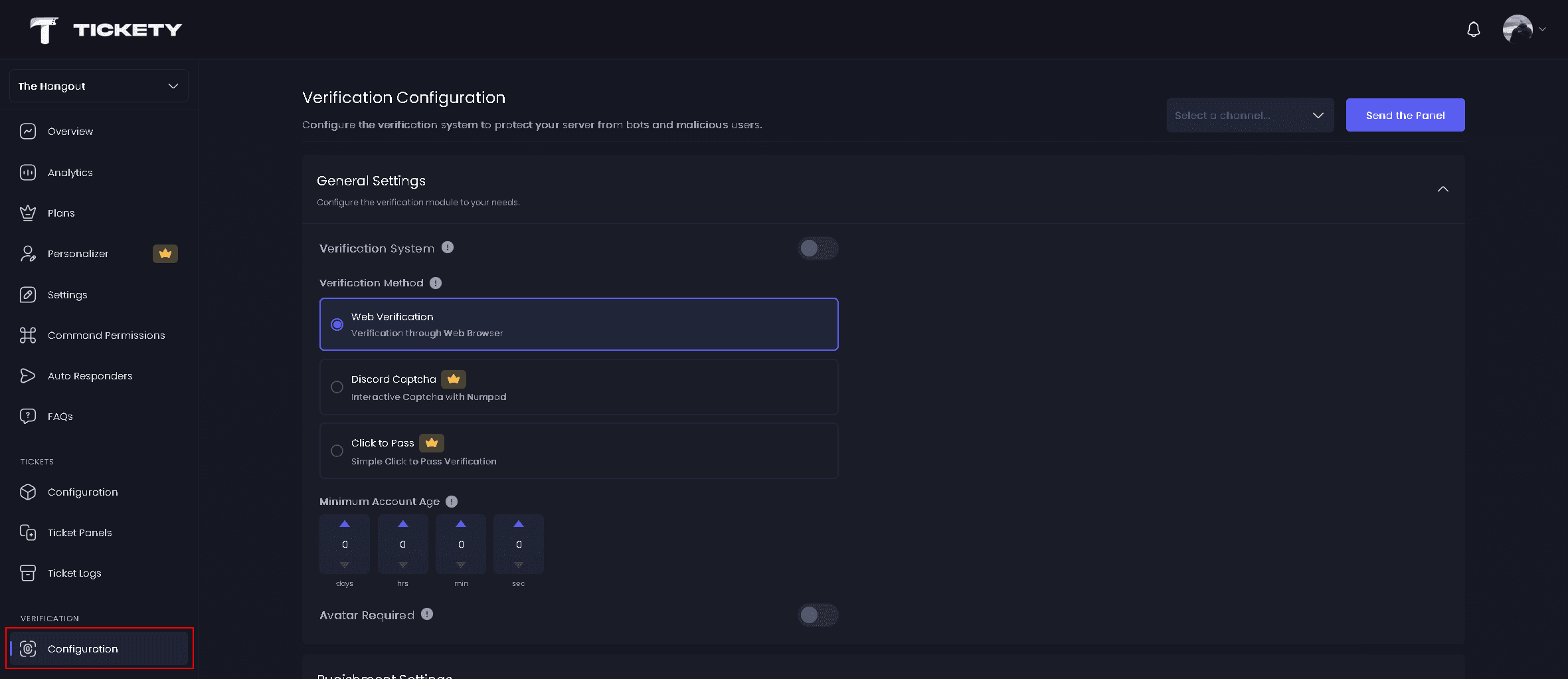
Once logged in, locate and click on the "Configuration" section in the sidebar under the VERIFICATION category.
-
You will see the Verification Configuration page with all available settings.
Before you start
You need Manage Server in your Discord server to open this page.
Tickety's own role must sit above every role you plan to hand out or take away. Move it to the top of your role list under Server Settings then Roles in Discord. If it sits too low, the role pickers on this page refuse the role and the Verify button fails when a member presses it.
General Settings
Configure the verification module to your needs.
-
Verification System - Turns verification on or off for the whole server. While it is off, the Verify button, the verification commands and any pending punishment do nothing. Turning it on is what makes new members receive the unverified roles.
-
Verification Method - How members prove they are human. Pick one of the three cards:
Web Verification, Discord Captcha 👑 or Click to Pass 👑. See Verification Methods for what a member does in each one. -
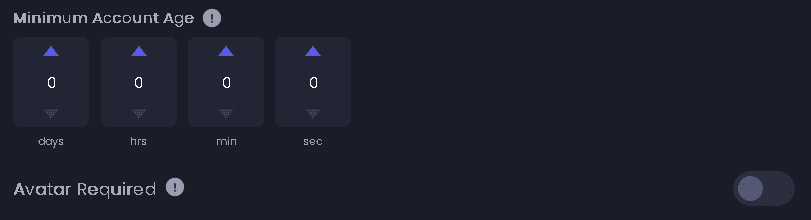
Minimum Account Age - Blocks members whose Discord account is younger than this from starting verification. They see an Account Too New message instead. Set it to 0 to switch it off.
-
Avatar Required - Requires a profile picture before someone can verify. Members without one see Profile Picture Required.
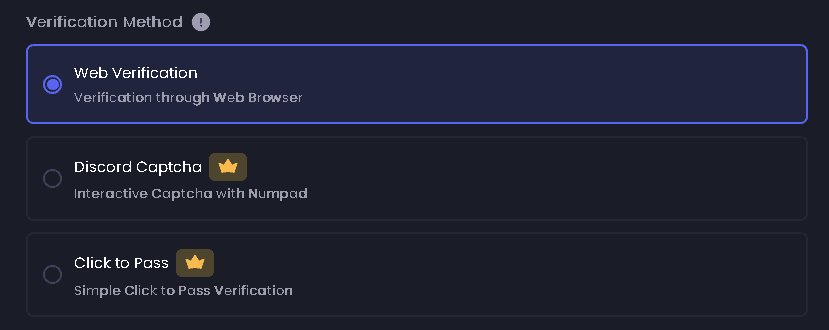
While the server has no premium, the two premium methods fall back to Web Verification. Your choice stays saved and starts working again when premium comes back.
This feature requires a Premium Subscription.
The Web Verification card carries its own Settings button. That opens the Web Security rules for browser verification, which are premium as well.
Punishment Settings
Punishments decides what happens to a member who never verifies, or who fails too many times. The whole section, including the grace period, the punishment action, the roles and the appeal panel, is covered on Punishments and Appeals.
Role Management
Configure role management on server join and verification.
-
Unverified Roles - Roles given to members the moment they join, and taken away again once they verify. Use them to hide your channels from anyone who has not verified yet.
-
Verified Roles - Roles given when a member passes verification.

You can pick up to 25 roles in each list. Both pickers refuse any role that sits above Tickety's own role.
If a verified member has lost their verified roles, or somehow still carries an unverified role, pressing Verify again repairs the roles instead of starting a new verification.
Verification Message
Customize the verification panel embed that members see.
Verification Embed
Modify the verification panel embed to your needs.
You can customize the following aspects of the embed:
- Embed Color - Set the color of the embed's left border
- 👑 Author Icon - Add an icon image next to the author name
- 👑 Author - Set the name of the author
- 👑 Author URL - Add a clickable link to the author's name
- 👑 Thumbnail - Add a small image in the top right corner of the embed
- Embed Title - Set the main title of the embed
- Embed Description - Add the main content/description text
- 👑 Large Image - Add a large image at the bottom of the embed
- 👑 Footer Icon - Add an icon image next to the footer text
- 👑 Embed Footer - Add text at the bottom of the embed
Out of the box the panel reads Verification Required, with a description that points at your server name. Every placeholder works here, so {guild.name} and {guild.memberCount} fill themselves in.
Verification Button 👑
The button that starts verification:
- 👑 Label - The text on the button. Up to 80 characters.
- 👑 Emoji - An emoji in front of the label. Custom server emojis are premium.
- 👑 Button Style -
Blue,Grey,GreenorRed.
The customised button is posted on premium servers only. Free servers always get the default blue Verify button, even though the fields can be edited and saved.
This feature requires a Premium Subscription.
FAQ Configuration
Link an FAQ panel and a second button appears next to Verify, so members can read your answers before they verify.
-
FAQ Panel - The FAQ panel the button opens. The button only appears while that panel still exists.
-
👑 Sync Embed Color - Uses the verification message's embed color for the FAQ instead of the FAQ panel's own color. Shown once a panel is selected.
-
FAQ Button - The look of the button: a label, an emoji and a style. It starts as a question mark emoji with the label
FAQin grey.
The label and the emoji work on every server. The button style is premium, so free servers always render the FAQ button grey. Custom server emojis are premium as well.
This feature requires a Premium Subscription.
See FAQ Buttons on Other Features for the other places an FAQ panel can be attached.
Success Message
Modify the message shown after successful verification.
Success Embed
Customize the success embed to your needs.
You can customize the following aspects of the embed:
- Embed Color - Set the color of the embed's left border
- 👑 Author Icon - Add an icon image next to the author name
- 👑 Author - Set the name of the author
- 👑 Author URL - Add a clickable link to the author's name
- 👑 Thumbnail - Add a small image in the top right corner of the embed
- Embed Title - Set the main title of the embed
- Embed Description - Add the main content/description text
- 👑 Large Image - Add a large image at the bottom of the embed
- 👑 Footer Icon - Add an icon image next to the footer text
- 👑 Embed Footer - Add text at the bottom of the embed
Where this message lands depends on the method. With Web Verification it arrives as a direct message. With Discord Captcha and Click to Pass it replaces the private message the member was already looking at inside Discord.
A member with direct messages closed still gets their roles. Only the message is lost. See How to open my DMs? for what to tell them.
Commands Cooldown
Adjust the delay between executing verification commands (in seconds).
-
Cooldown Time - How long members must wait between verification actions in this server. Set it to 0 to switch it off, up to a maximum of 7 days.

It covers the manual verify and unverify actions. Someone who runs into it sees "You are on cooldown for verification actions."
Logging
Set up a log channel for verification events.
-
Log Channel - Where verification events are posted: passes, fails, panel sends, and manual verify or unverify. Leave it on
Defaultto follow the general log channel from Server Settings.
Picking Default while your server has no general log channel logs nothing. The dashboard warns you under the picker when that happens.
A pass or fail log carries three blocks:
| Block | What it shows |
|---|---|
| Verification Information | Status, date, verification ID and completion time |
| Account Information | The member, their username, their user ID and their account age |
| Web Information | Only with Web Security on: the outcome, whether the captcha passed, and what was detected |
Sending the panel
Save your changes with the bar at the bottom of the page first. The send is refused while you still have unsaved changes, while the verification system is off, or while no channel is picked.
Then pick the channel at the top of the page and click Send the Panel. You can also run /sendverificationpanel in the channel itself.
Tickety needs View Channel, Send Messages and Embed Links in that channel. Every send is recorded in your log channel.
You can set up most of this from inside Discord with /configurator. Its Verification section covers the system toggle, the method, the account age and avatar rules, the log channel, the cooldown, the punishment fields and the roles. The messages, the FAQ button, Quarantine, the appeal panel and Web Security are dashboard only.
Where to go next
- Verification Methods: the three ways to verify, and the commands that verify a member by hand.
- Punishments and Appeals: what happens to members who never verify.
- Web Security: extra checks on browser verification, for premium servers.
- Analytics: passes, fails and what was blocked.
- Placeholders: everything you can drop into the panel and success messages.